Tables
Typed rows with sorting, paging, selection, and row actions.
table shows a list of rows as a table. You hand it a getter for the rows and describe the columns; every feature, from sorting to row menus, turns on by the option you pass.
import { defineDashboardPage, page, table } from 'ohnejs/dashboard';

interface Raider {
  name: string;
  role: string;
  level: number;
}

const raiders: Raider[] = [
  { name: 'Thrall', role: 'Shaman', level: 80 },
  { name: 'Jaina Proudmoore', role: 'Mage', level: 80 },
  { name: 'Anduin Wrynn', role: 'Priest', level: 79 },
];

export default defineDashboardPage(() =>
  page(
    { title: 'Raiders' },
    table(() => raiders, {
      key: (raider) => raider.name,
      columns: {
        name: { label: 'Name', value: (raider) => raider.name, sortable: 'text' },
        role: { label: 'Role', value: (raider) => raider.role },
        level: { label: 'Level', value: (raider) => raider.level, align: 'end' },
      },
    }),
  ),
);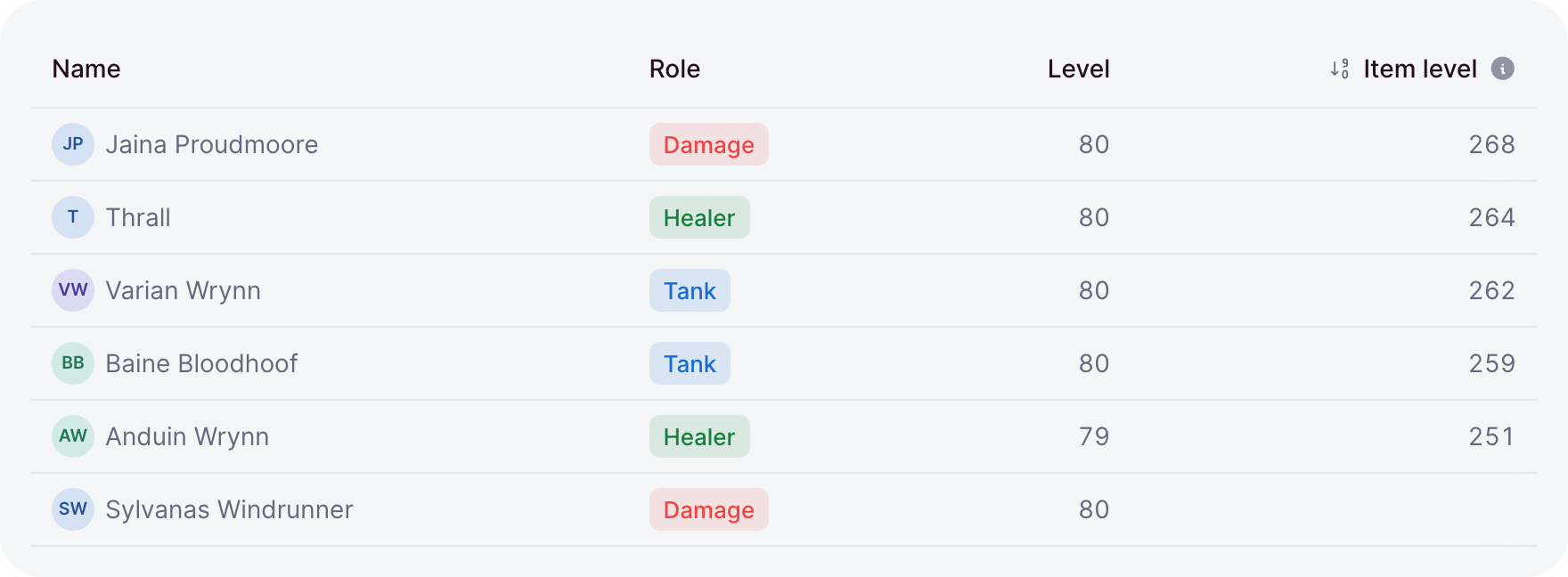
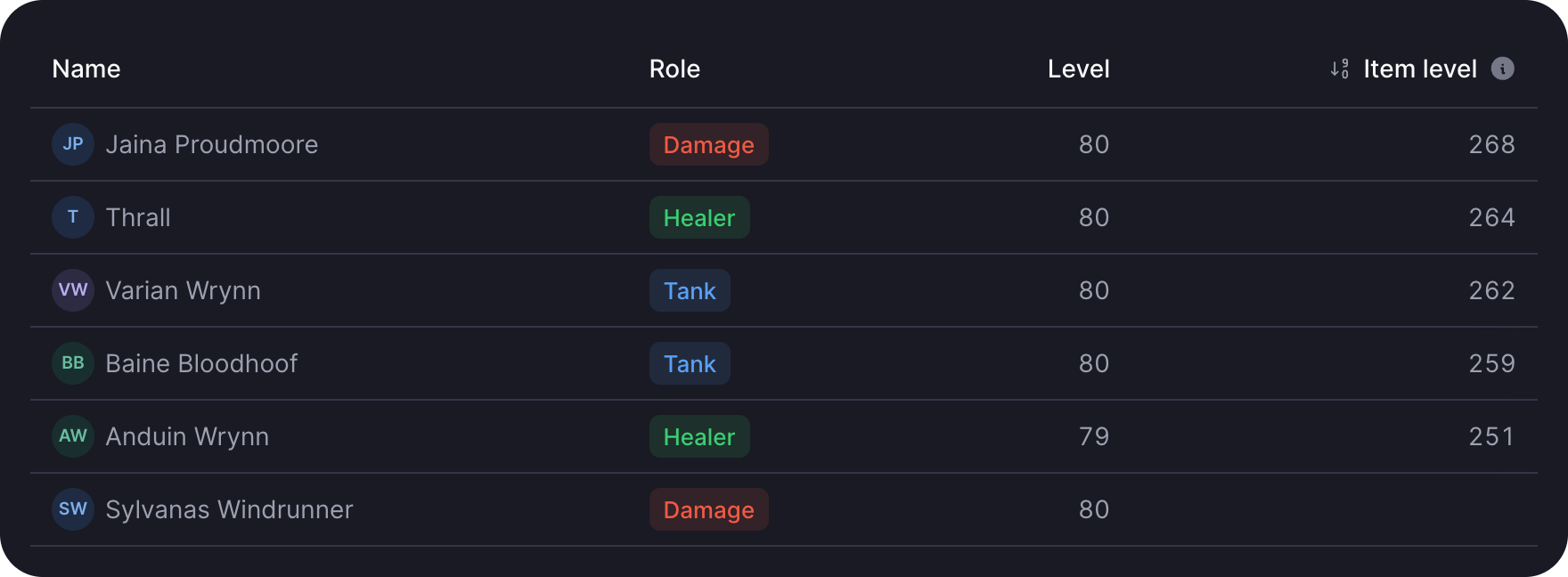
The row type comes from the getter, so every raider in the columns is a Raider and a typo fails the typecheck. key names each row, the way each does.
Values and render
A column shows its value, or what render builds:
columns: {
  gold: { label: 'Gold', value: (raider) => raider.gold, align: 'end' },
  role: { label: 'Role', render: (raider) => badge(raider.role, { variant: 'soft' }) },
}- A number value prints in the dashboard language with even-width digits;
nullprints nothing. valueis also the sort key, so a rendered column can keep one to stay sortable.helpadds a tooltip to the header.- Columns show in the order you write them. Number-like names such as
'2024'jump to the front, as JavaScript orders such keys.
Sorting
sortable adds a sort button to the header:
const sort = ref<TableSort<'name' | 'level'> | null>({ column: 'level', direction: 'desc' });

table(() => raiders.value, { key, columns, sort });- The table sorts by the column's
value: numbers as numbers, text in natural order, empty values last. - A click sorts ascending, a second click descending.
- Omitted,
sortstarts unsorted and the table keeps it. - With
serverSort: truea click only writessortand the rows show in the order they come. Use it when your API sorts, and sendsort.valuewith the request.
Pagination
pageSize splits the rows into pages, with page buttons under the table:
table(() => members.value, { key, columns, pageSize: 20 })- The buttons hide when everything fits on one page.
- A refresh keeps the page you are on; a new sort goes back to page one.
- For pages your API serves, render
paginationyourself and hand the table one page of rows.
Loading and empty
The rows getter tells the table what to show:
const raids = useResource<Raid[]>('GET /raids');

table(raids, { key: (raid) => raid.UUID, columns, empty: 'No raids planned' })undefinedshows skeleton rows at the final row height.[]shows the empty state, readingemptyor a default text.- A
useResourceresult adds its failures: an error with a retry, or a locked state for a403.
Opening rows
href makes each row lead somewhere:
table(() => raiders.value, { key, columns, href: (raider) => `/raiders/${raider.name}` })- A click opens the row, and Enter opens a focused one.
- Cmd or Ctrl and a middle click open it in a new tab.
onOpenruns your own code instead, or alongside.- On a table with
selection, a double-click opens, so a single click stays free for checkboxes.
Selection
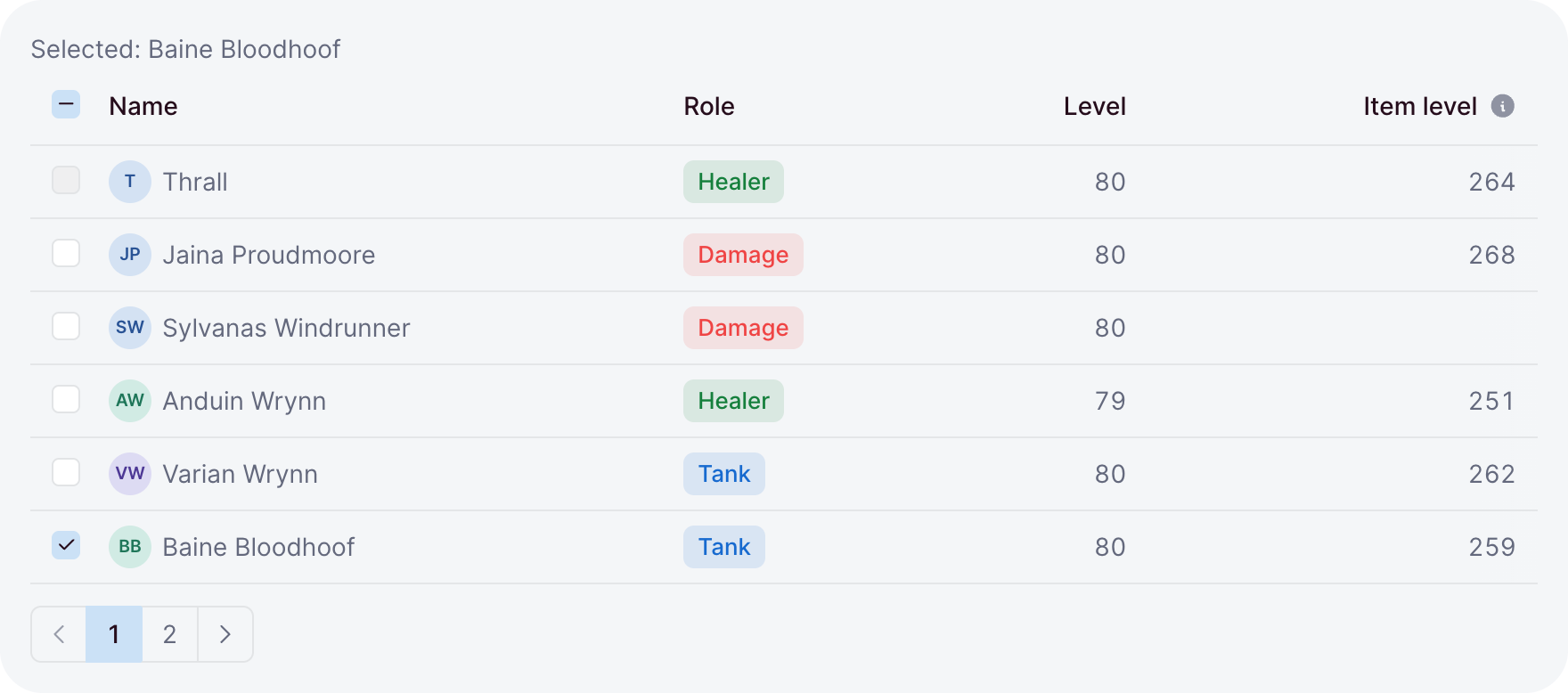
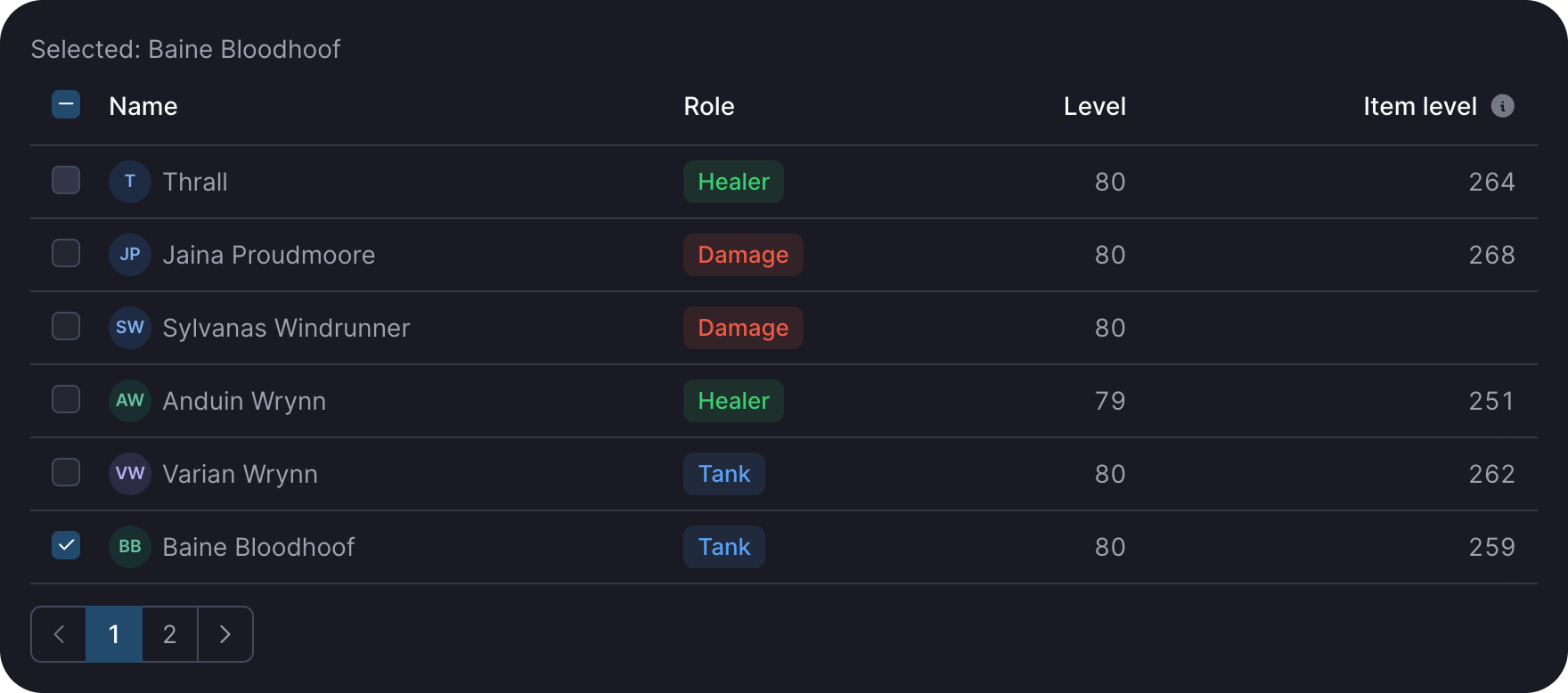
selection adds a checkbox per row, bound to a set of keys:
const picked = ref<ReadonlySet<string>>(new Set());

table(() => raiders.value, {
  key: (raider) => raider.name,
  columns,
  selection: { selected: picked, selectable: (raider) => raider.rank !== 'Guild Master' },
})- Shift-click selects the range from the last row you picked.
- The header box selects every selectable row on the page, or clears them.
- Keys on other pages stay selected, so a selection can span pages.
checkboxesdecides when the column shows, andallreplaces the header box's state and toggle.
Row actions
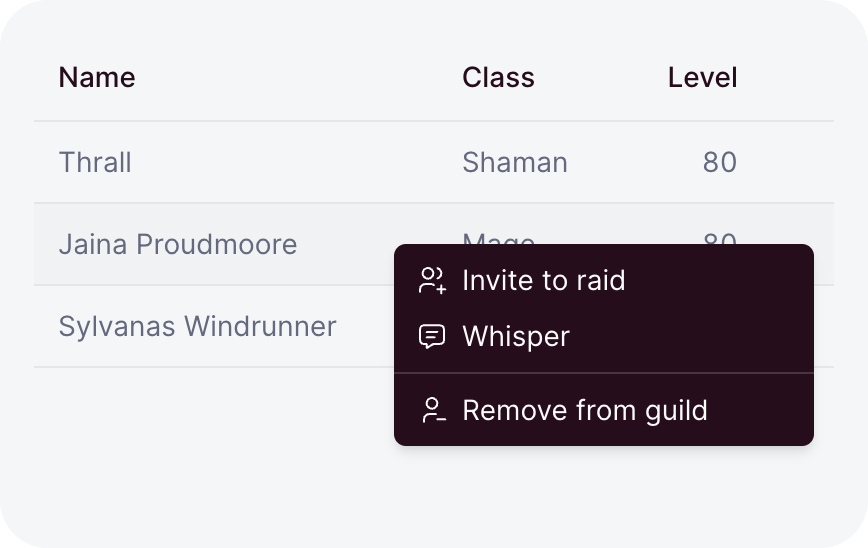
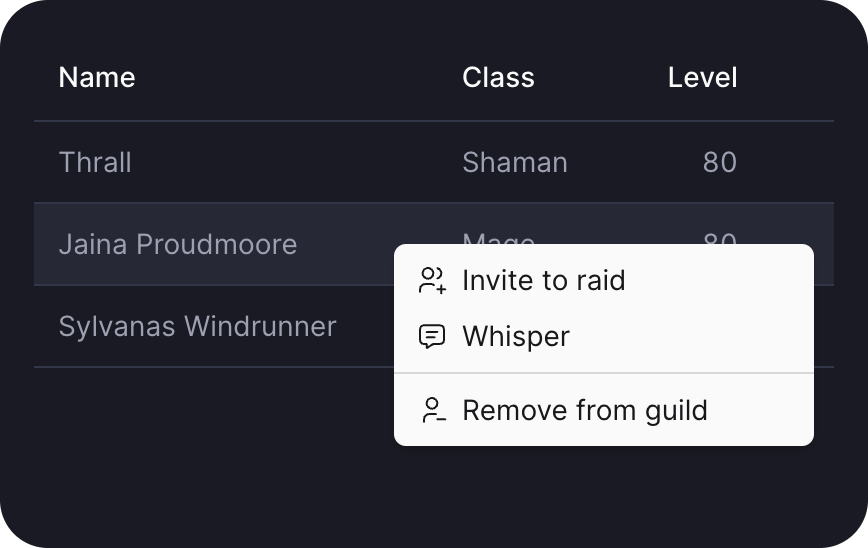
actions adds a menu button at the end of each row:
actions: (raider) => [
  [{ label: 'Promote', icon: 'arrow-up', onSelect: () => promote(raider) }],
  [{ label: 'Remove', icon: 'trash-x', destructive: true, onSelect: () => remove(raider) }],
]
The function runs each time a menu opens, so it can read live state. The groups are the ones menu takes. A row whose groups are all empty shows no menu button.
A right-click on the row opens the same menu as a context menu.
Acting on the selection
Opening a row's menu never changes the selection. To act on every selected row, read the selection in actions: when the row is part of it, return the actions for all of them.
const picked = ref<ReadonlySet<string>>(new Set());

table(() => raiders.value, {
  key: (raider) => raider.name,
  columns,
  selection: { selected: picked },
  actions: (raider) => {
    const names = picked.value;
    if (!names.has(raider.name) || names.size < 2) {
      return [[{ label: 'Promote', icon: 'arrow-up', onSelect: () => promote(raider) }]];
    }
    return [
      [{ label: 'Clear selection', icon: 'square-off', onSelect: () => (picked.value = new Set()) }],
      [
        {
          label: `Remove ${names.size}`,
          icon: 'trash-x',
          destructive: true,
          onSelect: () => remove(names),
        },
      ],
    ];
  },
})
Layout and scrolling
The table fills its container's width and scrolls sideways when the columns need more:
card(table(() => raiders.value, { key, columns, maxHeight: '24rem' }), { flush: true })- The header sticks while the table has a bounded height:
maxHeight, or a parent with a height. - The checkbox and first columns stick to the left, the actions to the right.
- Cells stay on one line;
wrap: truelets a column wrap, at leastminWidthor16remwide. fixed: truekeeps the setwidthof each column and truncates longer text.- Inside a container narrower than
30rem, the first column narrows and wraps.